

Working guide for legal professionals
A practical guide that follows the review screens in order, from confirming your credential to choosing documents, entering values and revising them. Screen and button names match the review tool now in preparation.
Sign-up, credentials, visibility, terms
First, thank you to the legal professionals who share AIO’s vision and take part.
Entering values requires a confirmed profession. An account with only a confirmed affiliation can view documents but cannot enter values.
- 1
Sign up and sign in
Sign in from the menu at the top of the site. The first time, a window asks you to confirm your family and given names. They are used on public screens; whether they are shown is set under Visibility.
- 2
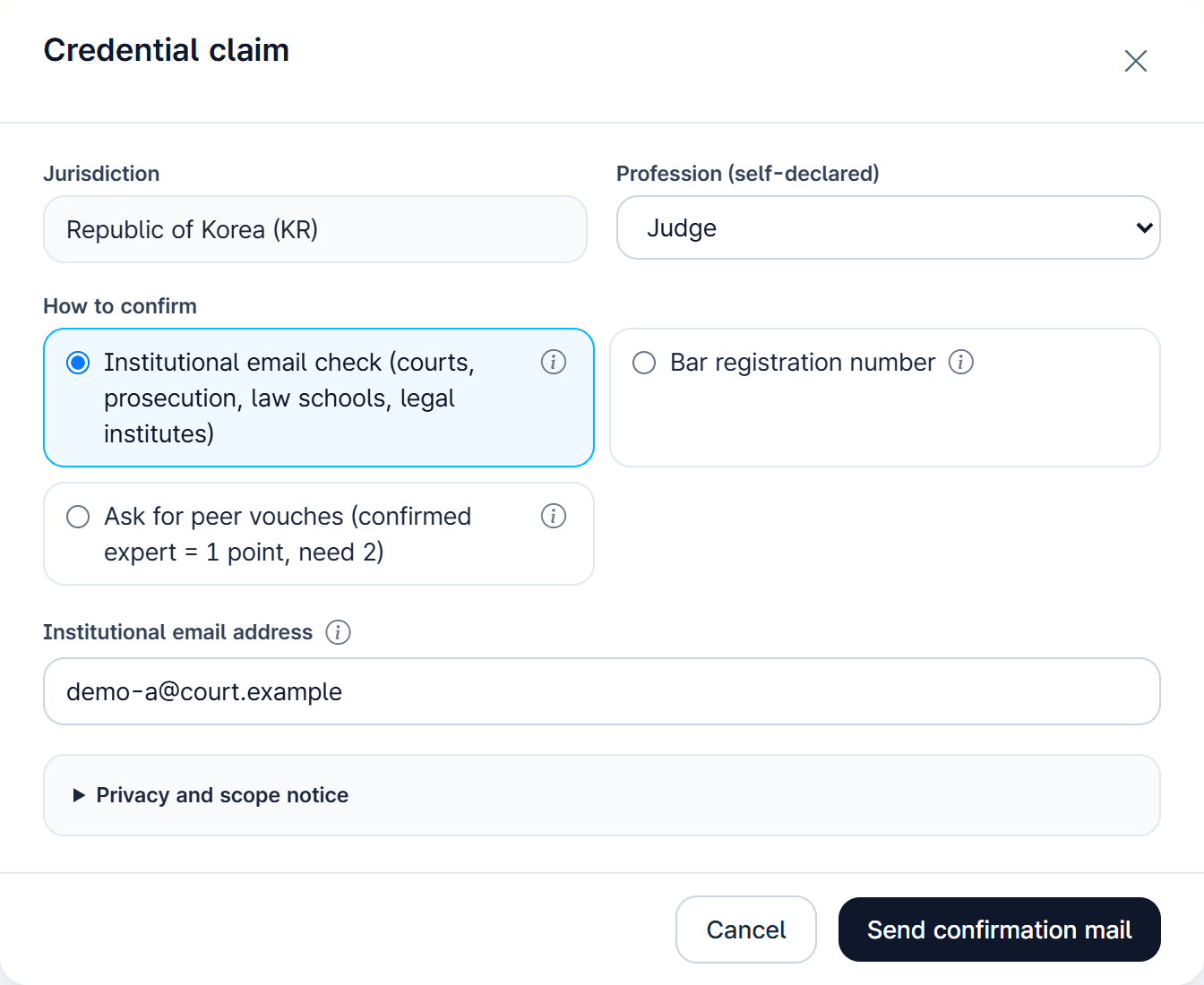
Submit a “Credential claim”
Press “Credential claim” in the profile header of your dashboard. The button appears only while you have no credential or a check is in progress.
The jurisdiction is currently “Republic of Korea (KR)” only. Under Profession (self-declared) choose judge, prosecutor, attorney, legal scholar or other legal professional, then choose how to confirm.
- 3
Finish the check for your method
Each method has its own steps, listed below. Once confirmed, a label such as “Attorney · role confirmed” appears on your dashboard and on document cards.
Credentials are rechecked every 180 days. An institutional email must be checked again; vouches are kept.
- 4
Set your visibility
Under “Visibility” in “Edit profile”, switch Show my name, Show my photo, Show my affiliation and Show how I was confirmed on or off. The preview at the top shows how you will appear.
With your name off, only a label such as “Attorney · role confirmed” appears on cards, document windows and public pages. For sitting judges and prosecutors “Credential label only” is the default. Email and account details are never published.
- 5
Agree to the reviewer terms
The first time you open the review home, the “Reviewer Terms v1” screen appears. Tick “I agree to the terms. (required)”, check your organization, choose the “Listing choice (required)”, then press “Agree to the terms and start”. If the terms change you are asked again, and you can withdraw at any time.
Steps by confirmation method
- Institutional email check
- Enter an address at a court, the Constitutional Court, a prosecution office, a law school or a legal research institute and press “Send confirmation mail”. Open the link within 24 hours and press “Confirm”. This confirms your affiliation only, shown as “Court-affiliated · institutional email check”; one vouch from a role-confirmed expert adds the profession label. Shared government mail (korea.kr) is not accepted.
- Bar registration number
- Until there is an agreement with the body that keeps the register, numbers cannot be checked: the claim is recorded as pending and you are confirmed by peer vouching. The number itself is not stored.
- Ask for peer vouches
- Creating the claim gives you a claim code (CLM-KR-…). Give it to two role-confirmed experts, who enter it under “Vouch for a colleague” on their dashboard and press “Vouch”. Two vouches are needed; the same person counts once.
“My turn” on the dashboard, and the review home
The “My turn” section of your dashboard shows six documents that need a value. Among documents with no expert value yet, those where the models differ come first, then those where all three models agree, then those with only the September model extraction. If you choose the “Fields you follow”, their documents come first.
The dashboard also shows the six most recent “Documents with my value” and a line of your numbers (reviewed or added, agree, differ). Cards whose status changed since your last visit carry “Now agree” or “Now differ”.
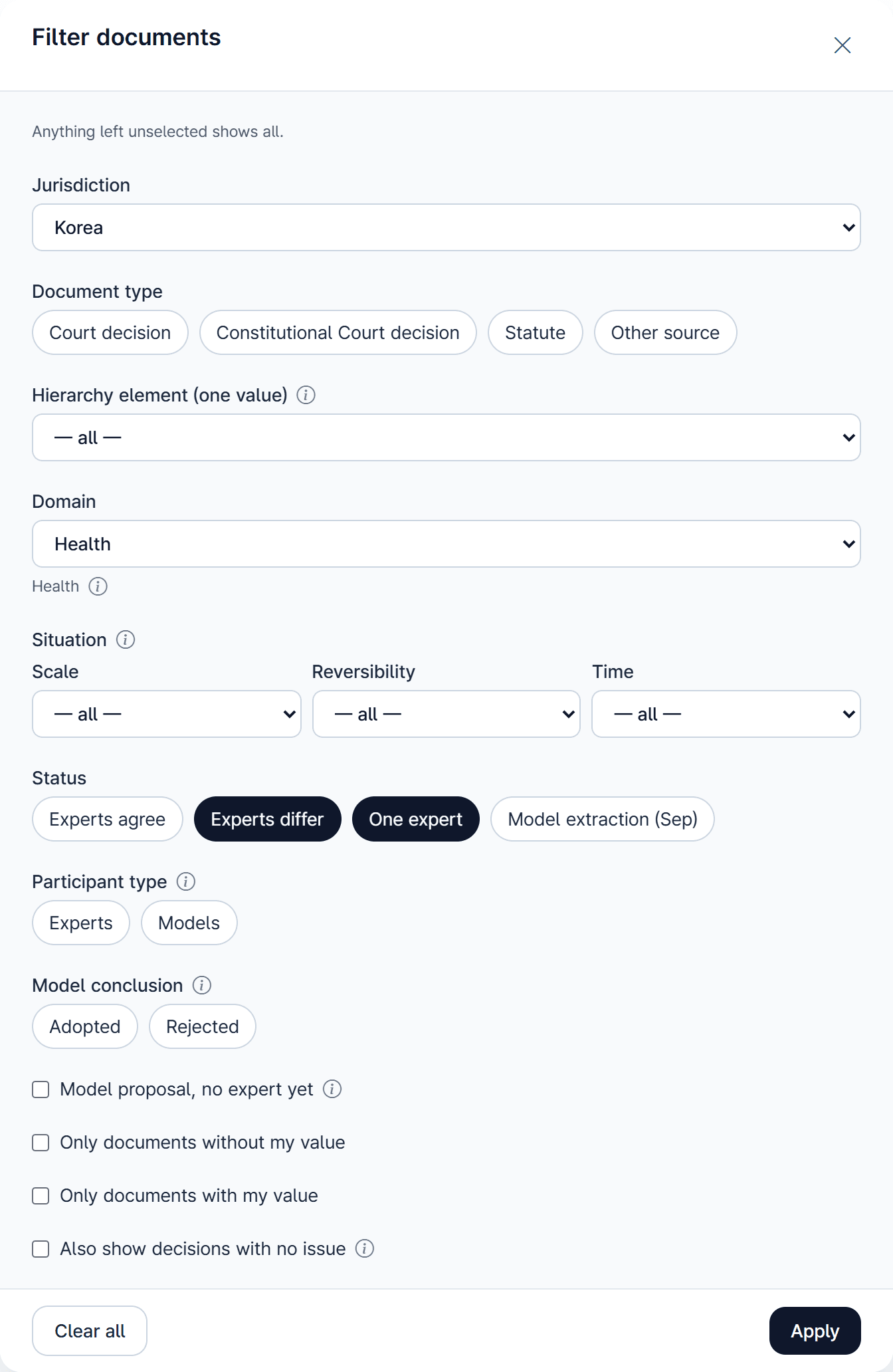
All documents are in the review home: twelve at first, twelve more with each “Show more”. Use “Filter” to narrow the list and the sort box next to it to change the order.
“Filter documents” options
- Jurisdiction
- Only Korea can be chosen now; Japan, the United States and the EU show as “coming”.
- Document type
- Court decision, Constitutional Court decision, statute or other source; you can pick several.
- Hierarchy element (one value)
- Shows documents where that value appears, whether it comes first or gives way.
- Domain
- Pick one domain, such as health, labour or education.
- Situation
- Choose a level of scale, reversibility or time to see documents with a value at that level or at every level.
- Status
- Experts agree, experts differ, one expert, or model extraction only.
- Participant type · Model conclusion
- Documents with expert values or with model opinions, or by the models’ conclusion (adopted, rejected, tied).
- Tick boxes
- “Model proposal, no expert yet”, “Only documents without my value”, “Only documents with my value”, “Also show decisions with no issue” (left out by default).
Sorting
- Most detailed situation first (default)
- Documents whose scale, reversibility and time are set to specific levels come first.
- Differences & most experts first
- Experts differ, agree, one expert, then model extractions; within each, more experts first.
- Biggest gaps first
- Documents with the fewest experts first.
- Most recent
- Documents with the newest expert value first.
- Most participants · Most experts first
- The first counts experts plus answering models; the second counts experts only.
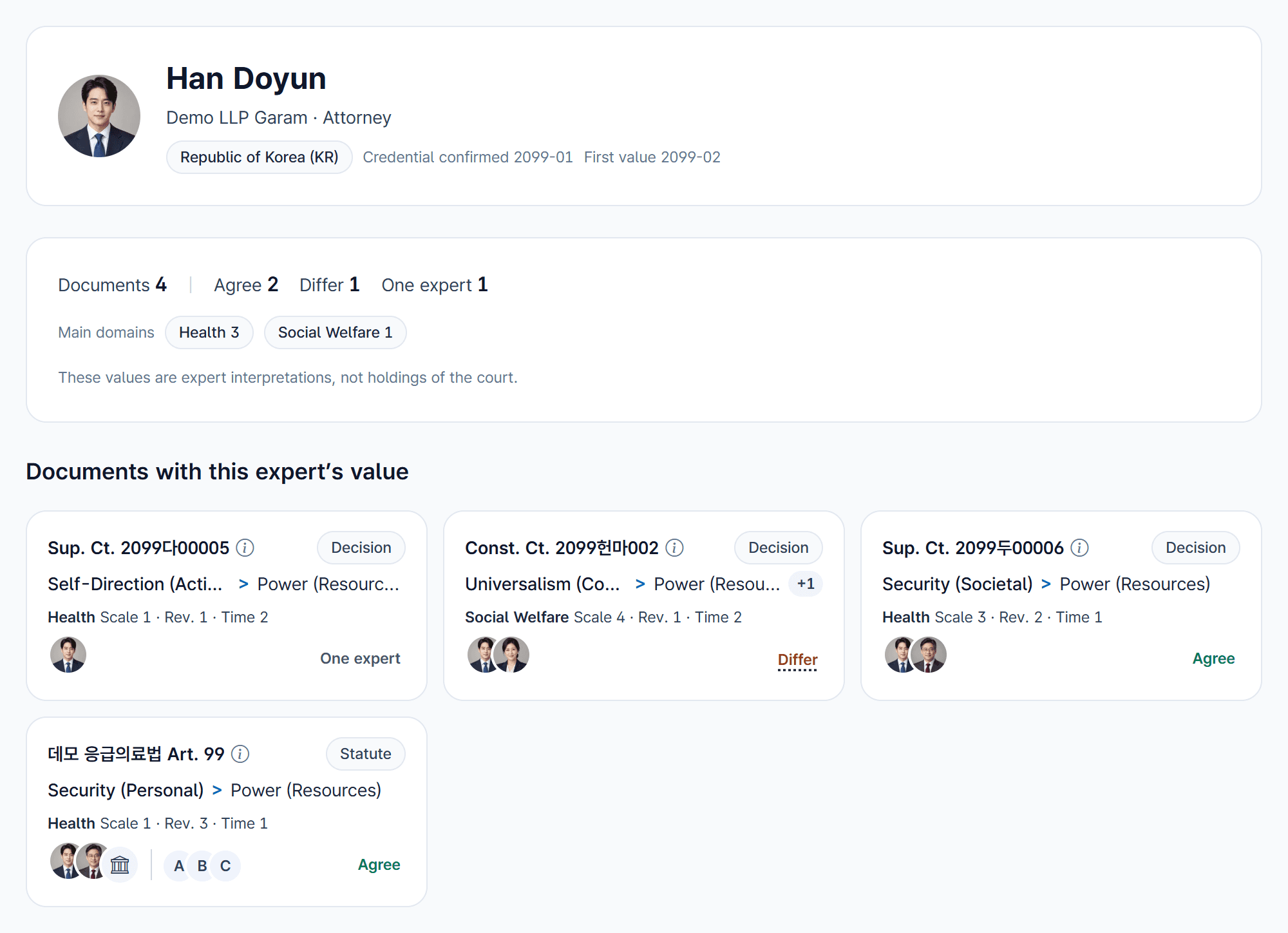
Reading a card
- Row 1: court and number
- For example “Sup. Ct. 2099다00002”. The info icon holds the case name and date; the chip on the right is the document type.
- Row 2: suggested value
- “Value put first > value that gives way”: the agreeing expert value if any, otherwise the value most models gave, otherwise the latest model extraction. “+n” means more pairs.
- Row 3: domain and situation
- Domain plus the three levels, such as “Health Scale 1 · Rev. 3 · Time 1”. If all three apply at every level it reads “all situations”.
- Row 4: participants and status
- Expert avatars on the left, models after the thin line. The word at the right end is the status (agree, differ, one expert); with no expert value there is no status word, only the model logos (hover to see how far the models agree). Your own avatar has a violet ring.

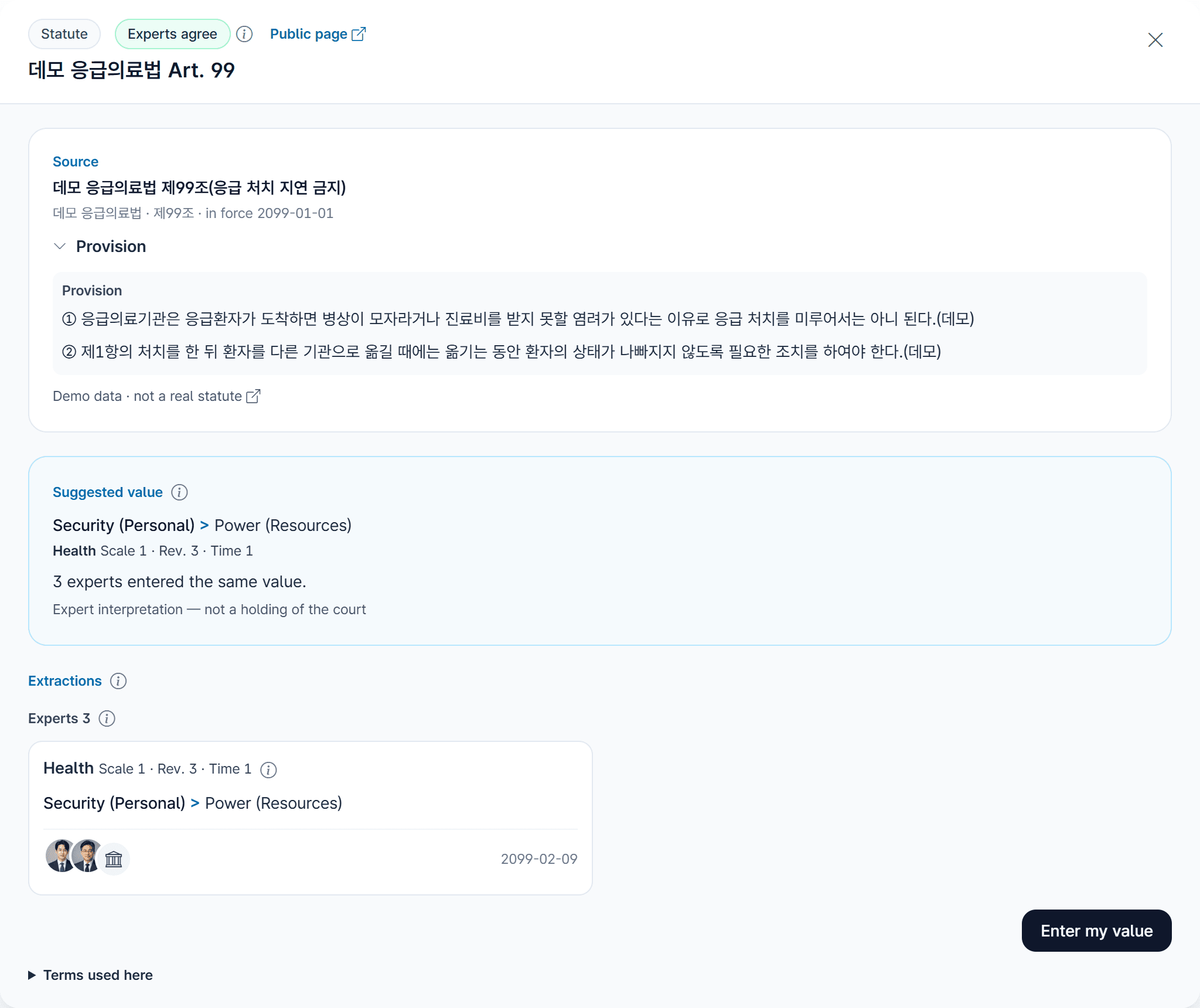
Click a card to open the document window
- Header
- Document type, the status chip (agree, differ, one expert, model extraction) and a “Public page” link.
- Source
- The case name or provision title, court and date or effective date, and the holdings, summary or provision text loaded from the National Law Information Center. If loading fails, a “Find the text” link appears.
- Suggested value
- The same value as the card’s second and third rows, with a one-line basis (for example, three experts entered the same value).
- Extractions
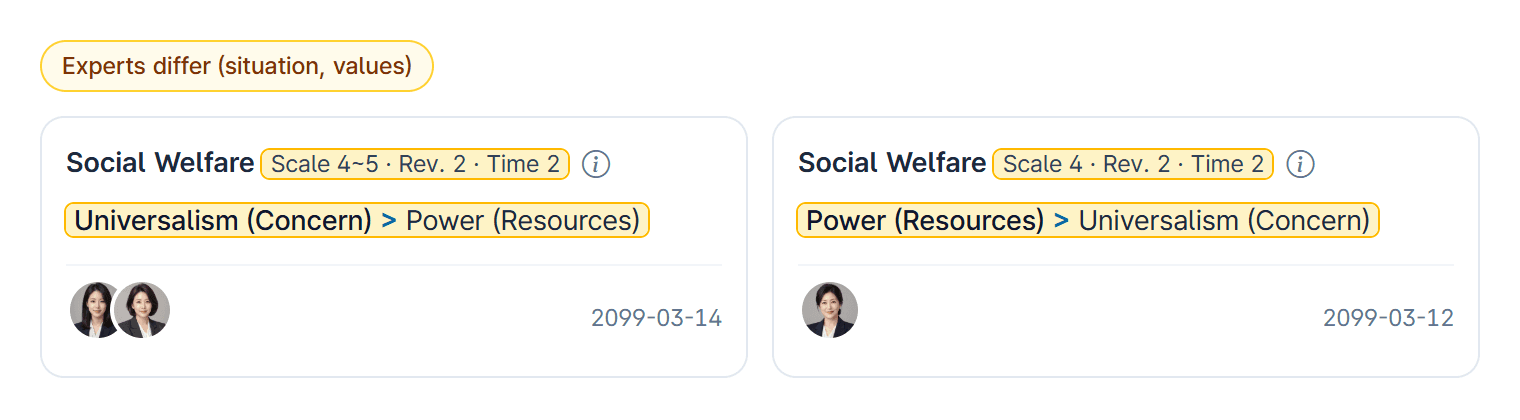
- Expert values first, then model extractions. Identical expert values share one card with the holders shown as avatars; hovering over an avatar shows the photo, name, affiliation and profession, and clicking the avatar of an expert who shows their name opens their public profile. If experts differ, the differing items are highlighted in yellow. Earlier values, a model’s earlier extraction and values read from dissents are folded away.
- “Enter my value”
- The button below the list opens the entry form inside the window. If you already have a value it reads “Replace with a new value”.
Nine steps
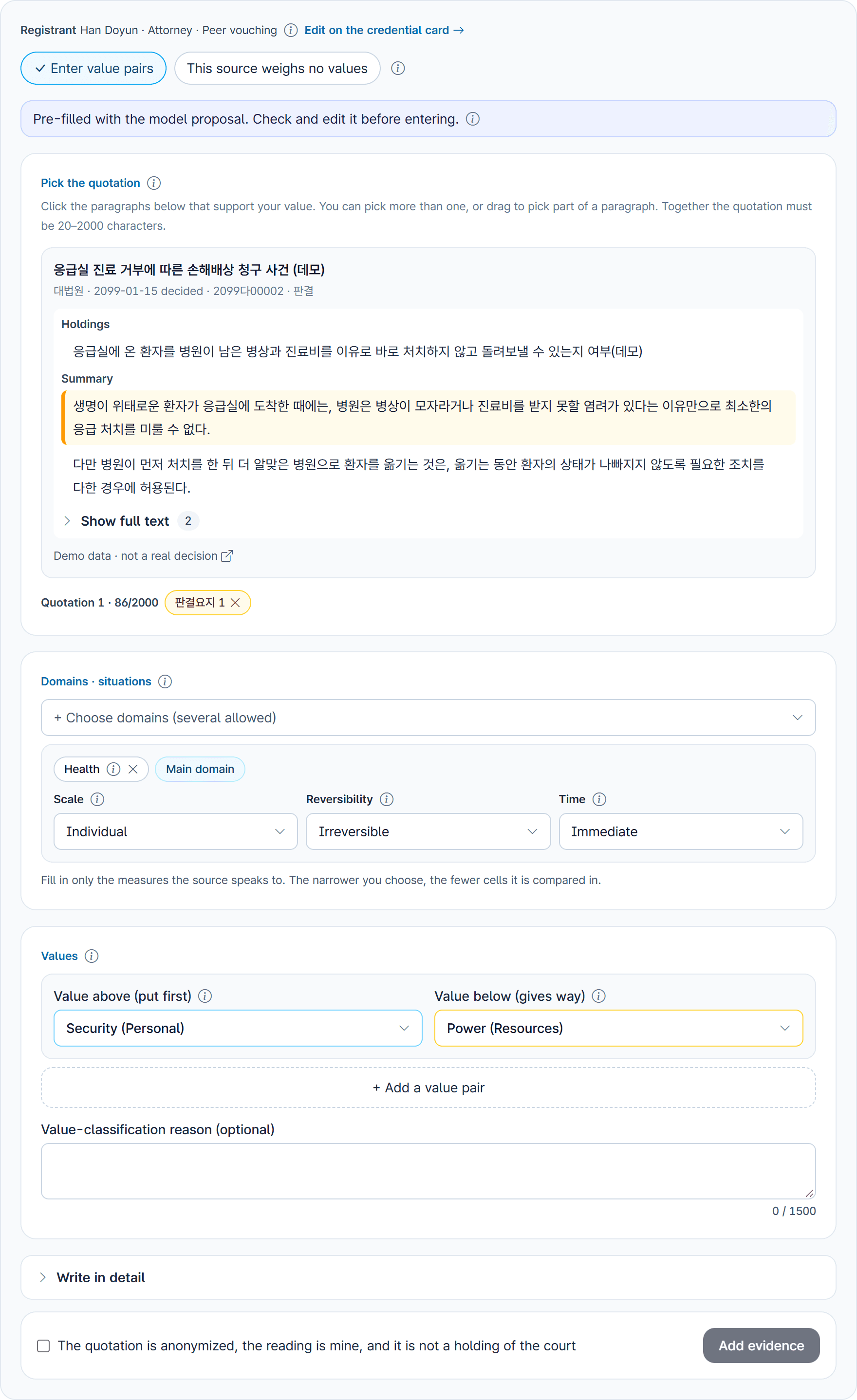
If the models proposed a value, the form opens pre-filled with it and a note at the top says so. Read the source, then submit it as it is or change it.
- 1
Pick the supporting paragraphs
Click the supporting paragraphs in the source text under “Pick the quotation”. You can pick several, or drag to pick part of one. Picked paragraphs turn yellow and appear as locator chips in the “Quotation” row; the close icon on a chip removes it.
Together the quotation must be 20 to 2,000 characters. In a decision, pick from the court’s holding (the majority opinion), not from dissenting or separate opinions.
- 2
Choose domains
Choose domains under “+ Choose domains (several allowed)”; each option’s info icon explains what it covers. The first domain gets the “Main domain” badge, so pick the central one first.
- 3
Set the three situation measures
For each domain set scale (1 individual to 5 society), reversibility (1 reversible, 2 partly, 3 irreversible) and time (1 immediate, 2 mid-term, 3 long-term). You can tick several levels.
Fill in only the measures the source speaks to. If the source alone cannot settle a measure, leave it “Withheld (default)”; it is then used only when the whole domain is compared, not by situation.
“Every level (one-line reason)” means you judge that the source does not narrow this measure to any level; give the reason in one line. Do not use it to mean “not sure”.
- 4
Choose the value pair
Under “Value above (put first)” choose the value the court or law put first; under “Value below (gives way)” the one that gave way. Each value’s info icon gives its definition and what losing it means.
If more pairs collide, add up to five with “+ Add a value pair”. The same value cannot be both above and below, and a pair cannot be repeated. Each pair is saved as its own evidence, so the button reads, for example, “Add evidence (2)”.
- 5
Add a reason (optional)
Under “Value-classification reason (optional)” you can explain your reading in up to 1,500 characters, or leave it empty.
- 6
Fill in “Write in detail” (optional)
Open “Write in detail” for these fields: what the text states, what I infer, the three-step value classification (expression in the text, interest the rule protects, motivational value reading), domain reasons and exceptions (reasons recorded at 10+ characters, one exception per line), counter-evidence search (scope, date, note, counter-sources found), supporting or derived sources, limits and over-generalization caveats, and an independence declaration.
All of them may stay empty. Empty fields stay on the public record as “not given” and are not used to judge agreement.
- 7
If no values collide
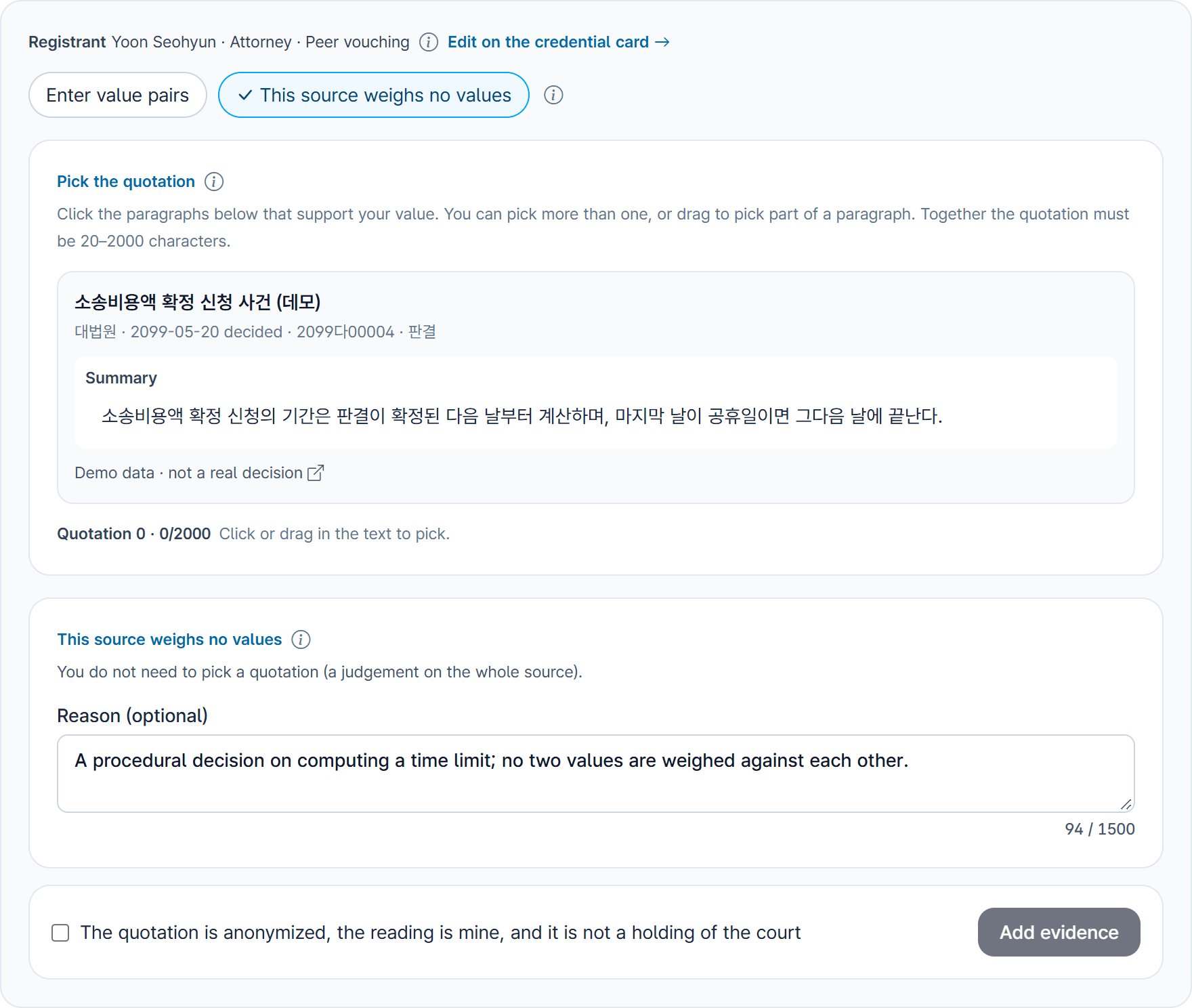
Choose “This source weighs no values” next to “Enter value pairs” at the top. It records that nowhere in the source are two values weighed against each other; no quotation is needed, and you can add a reason.
If another expert enters a value pair for the same document, it shows as “Experts differ (values)”.
- 8
Tick the confirmation box
You must tick “The quotation is anonymized, the reading is mine, and it is not a holding of the court”: the quote comes from an anonymized text and the value is your own interpretation.
- 9
Press “Add evidence”
If something is missing, a yellow box says what. Once saved you see “Saved”, and your value is public on the document card right away, next to other experts’ values.
Situations the outcome needs, and situations mentioned in passing
The form has no separate field for this. Choose levels in the three measures only when the outcome depends on that situation. A situation mentioned only while explaining is not chosen as a level; if you want to record it, write it in the value-classification reason or under “Limits / over-generalization caveats” in “Write in detail”.
If the decision says the outcome changes in a particular situation, write that situation in “Exceptions in this domain” under “Write in detail”, one per line.
In the calculation, documents that need no particular situation build the domain’s base order, and documents that need one change the order only in that situation cell. Situations mentioned only as reasons do not change the order. The model extractions in the document window also show reasons and exceptions apart from the levels.
Only your latest value counts; earlier ones stay on record
- On a document with your value, the button reads “Replace with a new value” and the form opens with your current value.
- You cannot submit an identical value; change at least one domain, situation or pair.
- Submitting moves the current value to “Earlier value”, folded under “Earlier extractions”. Only the latest value is used for agreement and the hierarchy.
Use “Add evidence” for decisions or provisions not yet listed
- 1
Open “Add evidence”
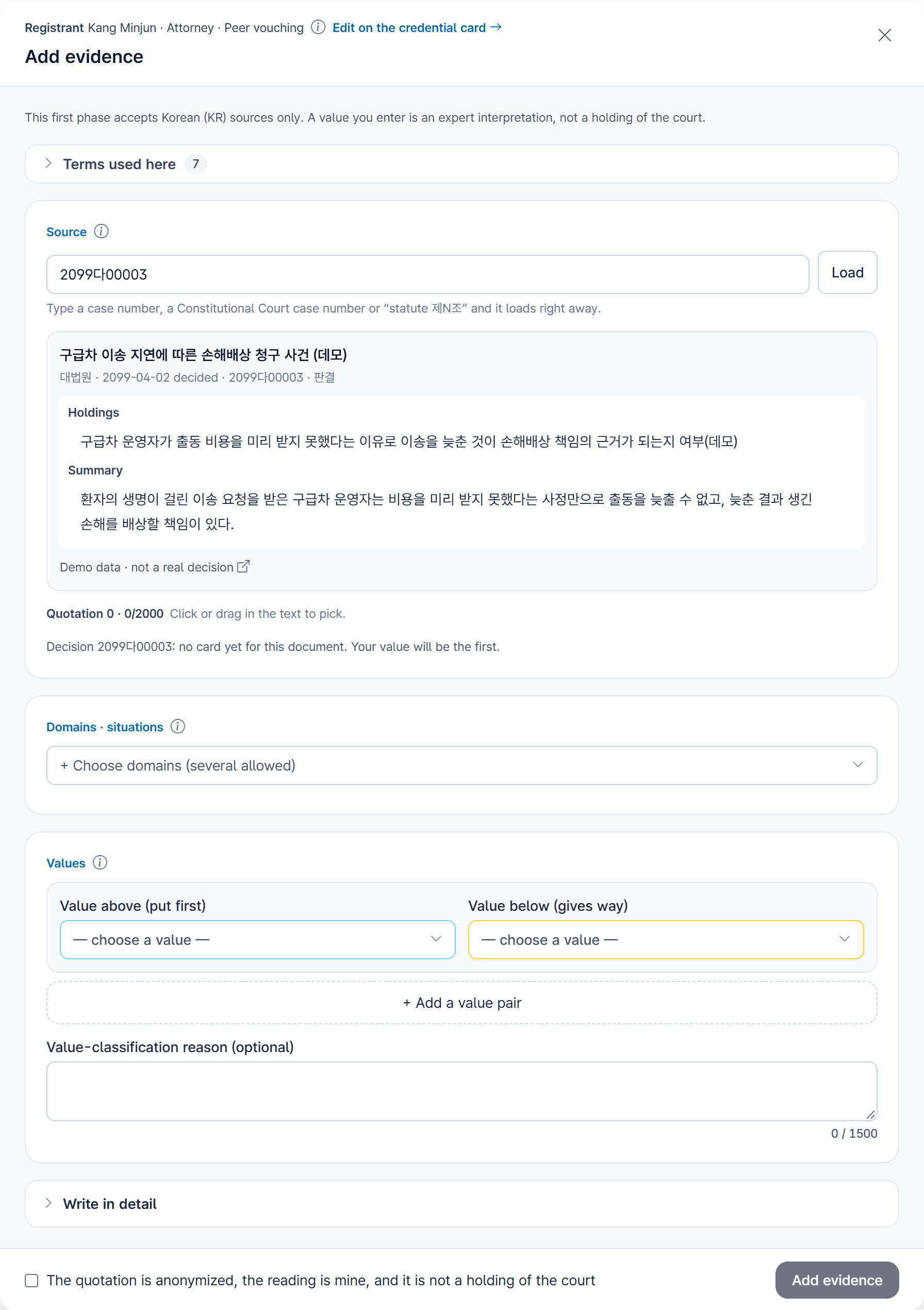
Press “Add evidence” in the row below the review home list. This first phase accepts Korean (KR) sources only.
- 2
Type a case number or provision
Enter a case number, a Constitutional Court case number or “statute 제N조”. Once it looks complete it loads after a moment, or press “Load”.
- 3
Check the official text and the card
The official text appears with its holdings and summary, and the matching document card is looked up. If one exists you see “This document already has a card” with “See it next to other values”; if not, a note says your value will be the first.
If several indexed provisions match, choose the right one. Then enter your value as in section 4.
- 4
If the lookup fails, enter it manually
Press “Enter manually” for fields: kind, case name or title, case number with court and date (or statute, article and effective date), locator, and “Paste the quotation (anonymized text only)”.
A document you add appears under “Evidence added” and “Documents I added” in your dashboard numbers.
Agree, differ, one expert
- Experts agree
- Two or more experts entered the same domains, situations and pairs. That becomes the document’s value and takes precedence over the models’ majority. Quotations and reasons are not compared.
- Experts differ
- Some part of the experts’ values differs. All values for the document are counted (one vote per model or person, latest per extractor) and the most common is used.
- One expert
- A single expert’s value is one vote within the document; on its own it does not change the hierarchy.
- Domain order
- For each domain, documents are counted by direction; only a two-thirds majority becomes an order, otherwise the pair stays split.
Check once more before submitting
- Quoting a dissent
- Dissents and separate opinions are not the court’s holding; quote the majority. Model extractions from them are not counted either.
- Filling in situations the source does not state
- If the source says nothing about scale or time, leave it withheld. Narrowing by guesswork distorts comparisons in other cells.
- Swapping above and below
- The value above is the one the court or law put first, not the one a party argued for or the one you prefer. Check the direction before submitting.
- Turning a passing remark into a condition
- A situation the court mentions only while explaining is not a condition of the outcome. Choose levels only when the outcome depends on them (section 5).
- Using “every level” when unsure
- When unsure, use withheld. Choose every level only when you judge that the source does not narrow the measure, and give the reason.
- Pasting personal data
- The form warns if an ID number, email or phone number appears. Quote only from anonymized text.
Before you submit
- The quotation comes from the court’s holding and is at least 20 characters.
- The most central domain is the “Main domain”.
- Only the measures the source states are set; the rest are withheld.
- Every “every level” measure has a one-line reason.
- The value above is the one the court or law put first.
- You read the confirmation box and ticked it.
What is published and what is not
- Quote only from anonymized decisions. Do not include people’s names or ID numbers, emails or phone numbers from a decision.
- Your values are published right away on the card, the document window and the public document page, with your name or credential label as set in Visibility, and may be published under CC BY 4.0 under the terms.
- Experts who show their name get a public profile with the name, affiliation, profession and photo they allowed, the month their credential was confirmed, and the documents they worked on with counts. Hiding your name also hides the profile.
- Sentences quoted from decisions are published only after human checks. Full decision texts and model inputs are not published.
- Institutional addresses and registration numbers are not stored in clear; only the result is kept. Email and account details are never shown on any screen.
- Your value is an expert interpretation, not a holding of the court, and is labelled that way on public screens.
Each jurisdiction’s lawyers work on its own documents
Korean documents come first. Japan, the United States and the EU appear as “coming” in the jurisdiction filter, and each will open once we know how credentials can be confirmed there (for example through the bar roll). The people below are demo profiles that show how it would look.
- Daniel WhitfordDemo LLPAttorney · United StatesDemo profile
- Claire HenleyDemo & Partners LLPAttorney · United StatesDemo profile
- Marcus EllisonDemo Legal Aid SocietyAttorney · United StatesDemo profile
- Naomi BrooksDemo University School of LawLegal scholar · United StatesDemo profile
- Richard CallowayDemo Institute of European LawLegal scholar · European UnionDemo profile
- Helen AshcroftDemo LLP BrusselsAttorney · European UnionDemo profile






All people, photos, case numbers (year 2099) and source text on this page are invented demo data; the screenshots show the review tool now in preparation filled with that data.